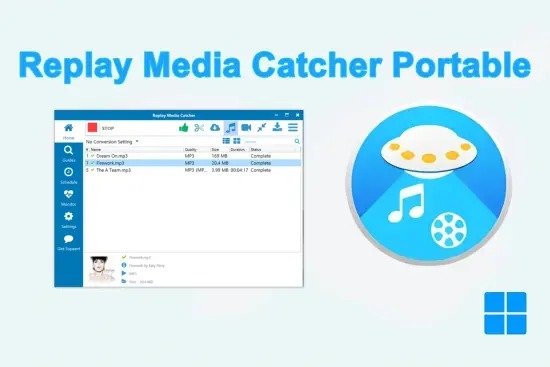
Replay Media Catcher Portable is a desktop application designed to capture, download, and convert online video and audio content from a very wide range of websites and streaming platforms. It sits quietly in the background while you browse the web, detects when media starts playing, and then duplicates that stream onto your local hard drive so you can keep copies for offline use. The software is marketed toward users who want to build local archives of web‑based videos, podcasts, music, and other streaming files, with an emphasis on ease of use, speed, and broad compatibility across formats and sites.
Core idea and target use
At its heart, Replay Media Catcher Portable is a streaming media recorder that bridges the gap between temporary online playback and long‑term local storage. Instead of relying solely on official download buttons or “Save for offline” features, it intercepts the data your browser or media player fetches from the internet and saves a second copy locally. This makes it useful for:
- Archiving tutorials, documentaries, or how‑to videos from educational sites and video platforms.
- Saving music tracks, radio‑style streams, and podcasts from streaming services that do not offer official offline export.
- Preparing content for use on devices that lack good app support or for offline playback in environments with poor or no internet connectivity.
The software is aimed at casual users who do not want to tinker with command‑line tools or browser extensions, while still offering enough configurability for more experienced users who want to tweak formats, quality, and scheduling.
How it actually works
Replay Media Catcher Portable operates by monitoring network traffic and audio pathways on your system. When you open a browser tab or media app and start playing a video or audio stream, the program detects the underlying media protocol and URL, then initiates its own independent download or recording session. There are generally three main capture modes:
- Stream‑downloader mode
This is the least intrusive method and works best on sites that serve content via standard protocols like HTTP(S) or HLS. The software sniffs the network, identifies the media URL, and fetches the file directly from the server, often much faster than real‑time playback. In many cases you can even close the browser or player window while the file continues to download. - Audio capture mode
When a site’s video or audio is encrypted or delivered in a way that cannot be easily intercepted by URL sniffing, the software can switch to recording the audio output of your system. This means it captures whatever sound is coming out of your speakers or headphones, at the same quality you hear it, and saves it as a standalone audio file (typically MP3 or WAV). - Digital Video Recorder (DVR) recording mode
For premium or highly protected streams (such as certain subscription‑based video‑on‑demand services), Replay Media Catcher Portable can act like a screen‑and‑audio recorder. It records the video frame‑by‑frame and synchronizes it with the audio stream, effectively performing a “runtime capture” rather than a pure file download. This mode is naturally slower than a raw download, because it must process the content in real time, but it can still be useful for capturing streams that are otherwise difficult to save.
Across these modes, the software is designed to be browser‑agnostic. It does not matter whether you use Chrome, Firefox, Edge, or another browser, or even a desktop media player; Replay Media Catcher Portable monitors the OS‑level audio and network activity, so it can catch media from almost any source as long as it plays on your PC.
User interface and workflow
The interface is intentionally simple and toolbar‑oriented, with a main capture window that shows the current status, active downloads, and a queue of pending files. Typical elements include:
- A central area listing detected media (videos, music, or other streams) with icons, titles, and estimated quality levels.
- Buttons to start, pause, or stop individual downloads or recordings.
- A small “mini” or compact mode that shrinks the interface into a thin bar or system‑tray control, allowing it to run unobtrusively in the background.
Workflow usually goes like this:
- You launch the application and make sure it’s running.
- You open your browser and navigate to the site or page containing the media you want.
- You start playing the video or audio; Replay Media Catcher Portable detects the stream and offers to download or record it.
- You choose a format and destination folder, then confirm; the download or recording begins automatically.
- Once complete, the file appears in your specified folder and can be opened, converted, or transferred to other devices.
A small but important feature is the ability to queue multiple files at once. For example, if you open several browser tabs with different videos or songs, the software can add them all to a batch list and download them sequentially, freeing you from having to manage each one manually.
Formats, quality, and conversion
One of the main selling points of Replay Media Catcher Portable is its support for a very broad range of formats and devices. The software can capture streams delivered in common web‑video and streaming protocols (including HTTP, HLS, RTMP, and others) and then convert or remux them into a large set of output formats optimized for different hardware and workflows.
Common output options include:
- Video formats such as MP4, AVI, MOV, WMV, and MKV, often with presets tuned for smartphones, tablets, or media players.
- Audio‑only formats such as MP3, WAV, and sometimes AAC, useful for music libraries and podcasts.
- Device‑specific presets that attempt to match settings like resolution, bitrate, and codec to popular mobile devices, game consoles, or media boxes.
The application usually includes a built‑in conversion engine that runs after capture, so you do not need a separate video converter. Typical settings let you choose:
- Resolution (for example, 480p, 720p, 1080p, or higher).
- Audio and video bitrates, which affect file size and quality.
- Frame rate and aspect ratio, sometimes with automatic detection to preserve the original ratios.
Quality is generally tied to the original stream: if the website serves low‑bitrate video, the downloaded file cannot magically become higher resolution, but it can be re‑encoded to better match your preferred codec or container without significant additional loss if the settings are chosen carefully.
Automatic detection and smart recording
Replay Media Catcher Portable is designed to minimize manual work by using “automatic detection” to recognize when a media file is playing. Instead of forcing you to copy and paste URLs or manually trigger capture, it watches for known streaming patterns and then:
- Highlights the detected media in the interface.
- Offers a one‑click option to start the download or recording.
- Often suggests a default output format based on the type of media (e.g., video vs. music).
For more complex or non‑standard streams, the program can fall back on “smart recording” which uses the audio‑capture or DVR‑style methods described above. This acts as a safety net for sites that do not expose their media URLs in a straightforward way, letting the software still produce a usable copy even when a pure download is not possible.
Smart recording can also be useful when dealing with live streams or dynamic playlists that change over time, since it focuses on the actual audible and visual content rather than the underlying playlist structure.
Audio‑centric features for music lovers
Beyond general video, Replay Media Catcher Portable offers a strong toolset aimed specifically at music and audio enthusiasts. The audio capture mode enables you to:
- Record songs or playlists from web‑based music services, including radio‑style stations or embedded players.
- Capture audio from any application that sends sound through your PC’s audio output, not just the browser.
- Save recordings in high‑quality audio formats suitable for archiving or later use in other software.
A notable feature in many versions is music fingerprinting and automatic tagging. When you record an audio stream, the software can analyze the audio, compare it to a database of track signatures, and then:
- Guess the song title, artist, and album.
- Automatically fill in ID3 tags for MP3 files, such as album art, genre, year, and track number.
- Rename files using a consistent naming scheme (for example, “Artist – Title.mp3”).
This greatly reduces the manual work of organizing a growing music library, especially if you are capturing many tracks over time. The accuracy of fingerprinting depends on how distinctive the recording is and how well it matches known entries, but in practice it can assign meaningful metadata to a large portion of common tracks.
Speed, resume, and batch handling
Performance is a key design goal. The software is engineered to:
- Download many streams at speeds that exceed real‑time playback, sometimes by several times, by establishing multiple connections and aggregating data from different segments of the same file.
- Resume interrupted downloads, so if a connection drops or the computer restarts, it can pick up where it left off instead of restarting from the beginning.
- Handle batch operations by queuing multiple URLs or detected streams and processing them one after another, or even in parallel, depending on system resources.
For users on slower or unstable connections, the ability to pause and resume is especially useful, because it avoids losing progress when bandwidth fluctuates or the system temporarily goes offline. Large‑scale downloads—such as entire playlists or multi‑part documentaries—can therefore proceed in a more robust way without requiring constant supervision.
File organization and library‑style features
Although Replay Media Catcher Portable is not a full‑blown media center application, it does include some basic library‑style features to help you keep your downloads manageable. These include:
- A built‑in media list that shows recently captured videos and audio files, often with thumbnails and basic metadata.
- Automatic file naming that can embed titles, dates, or other identifiers into filenames, making it easier to find specific recordings later.
- Simple folder‑based organization, where you can define default download locations and subfolders for different types of content (e.g., “Movies,” “Tutorials,” “Music”).
Some versions also provide straightforward search or filtering so you can quickly locate files by title, date, or media type. This becomes more important as your collection grows from a few test downloads into a sizable archive of videos, podcasts, and music tracks.
Scheduling and automation options
More advanced releases of Replay Media Catcher Portable add scheduling capabilities, which can be useful if you regularly want to record recurring content such as:
- Weekly video episodes or series.
- Live webinars or lectures that are streamed at fixed times.
- Radio‑style music or news shows that follow a timetable.
Using the scheduler, you can:
- Enter a URL or identify a stream once.
- Set a specific start time and date, along with a duration.
- Let the software automatically launch the capture at the scheduled moment, even if your browser is not open or you are away from the computer.
This automation turns the program into something closer to a home‑brew digital video recorder for the web, automatically capturing scheduled events without requiring manual intervention each time they air.
Practical applications and user scenarios
Replay Media Catcher Portable can be legitimately useful in a number of personal and semi‑professional scenarios, as long as usage respects applicable copyright and terms‑of‑service rules. Typical use cases include:
- Educational archiving: Saving tutorials, lectures, or training videos from platforms that may remove or reorganize content over time.
- Personal backup: Creating local copies of music playlists, audiobooks, or podcasts that you rely on but that might be re‑licensed or taken down.
- Offline playback: Preparing videos and music for travel, long flights, or areas with limited internet access.
- Content reuse: Capturing clips for later editing, compilation projects, or presentations, assuming the material is either your own or used under appropriate permissions.
For technically inclined users, the software can also act as a stopgap when a service lacks a proper offline mode or when you want to experiment with converting or repurposing content for personal projects, such as video editing, music remixing, or media‑center setups.
Considerations around legality and ethics
It is important to note that capturing and storing content from paid or restricted services can raise legal and ethical questions, even if the software itself is technically capable of doing so. Many streaming platforms explicitly prohibit downloading or redistributing their content, and some jurisdictions impose strict rules on circumventing access controls or copy protection. Users should therefore:
- Check the terms of service of each site they use.
- Respect copyright and licensing agreements, especially for commercial or public‑facing uses.
- Avoid sharing or redistributing captured content in ways that violate those terms or applicable laws.
Replay Media Catcher Portable does not intrinsically enforce these rules; it is up to the user to decide how and where to apply it responsibly.
Overall user experience and strengths
From a usability standpoint, the software emphasizes simplicity and automation. You normally do not need technical knowledge of codecs, protocols, or networking to get started: just play the media, let the program detect it, and confirm the destination. Over time, more advanced users can fine‑tune conversion settings, quality profiles, and scheduling options to tailor the behavior to their specific hardware and workflow.
Key strengths include:
- Broad compatibility with many websites and streaming protocols.
- High‑speed downloads for straightforward streams and the fallback to recording for more difficult or protected content.
- Integrated conversion and tagging that reduce the need for separate tools.
- Minimal user interaction once the basic settings are configured.
Release Notes:
- Removed dependency on old MSVC runtime library
- Improved tagging
- Updated EULAs
Win/Mac: Data Vaults